The £80 Laptop Revival: Why Upgrading Beats Replacing in 2026
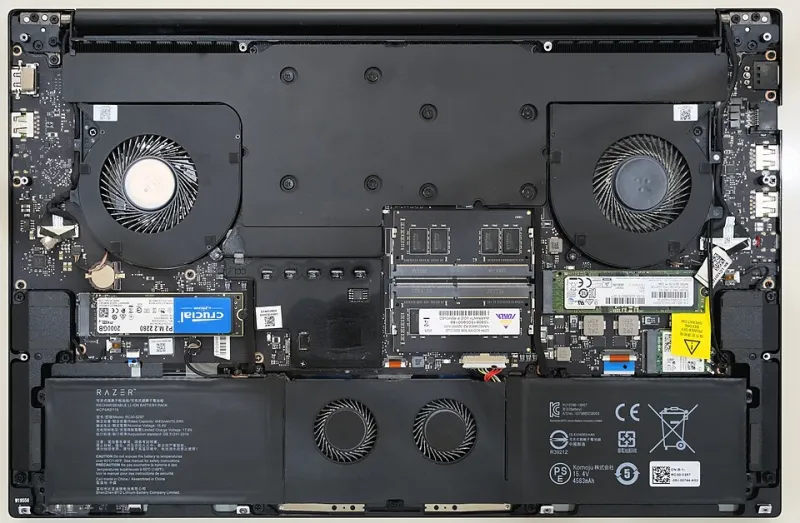
Photo: Benlisquare, CC BY-SA 4.0, via Wikimedia Commons
There is a particular kind of frustration that arrives around year five of laptop ownership. The thing still works, technically. It boots. It opens a browser. But it also takes long enough to load a Teams call that you could make a cup of tea, and every Windows update feels like a personal insult. The obvious answer is a new laptop, ideally something shiny for £600 or more.
The less obvious answer is often better: spend about £80 on a solid-state drive and a RAM kit, and give the machine another two or three years of useful life. This is not a universal fix, and it is not a magic trick. But for a lot of everyday laptops, it is the most sensible upgrade in tech.
The maths is boringly compelling
A new mid-range laptop in the UK in 2026 will set you back somewhere around £550–£750 if you want something with a decent screen, a current processor and enough memory to keep a dozen browser tabs open without wheezing. A 1TB SATA or NVMe SSD is roughly £40–£55 depending on the spec and the sales, and an 8GB or 16GB RAM kit is often £30–£45. Suddenly £80 sounds like a bargain.
More importantly, the upgrade addresses the two things that usually make an old laptop feel old. A mechanical hard drive is the single biggest bottleneck in most ageing machines. Replacing it with an SSD transforms boot times, app launches and general responsiveness. Adding RAM stops the system from shuffling everything to disk when you open one more tab. The processor stays the same, but the experience changes out of all proportion.
What £80 actually buys in 2026
Prices move around, so treat these as ballpark figures rather than gospel. A 1TB 2.5-inch SATA SSD is often around £45–£60, while a 500GB version can be closer to £30–£40. NVMe drives, if your laptop supports them, are usually similar or slightly cheaper for the same capacity. For RAM, an 8GB DDR4 SODIMM is often £25–£35, and a 16GB kit can be £40–£55. If your laptop uses DDR3, prices can be sillier because the stuff is older, so check before you get excited.
You do not need the fastest drive on the planet for everyday work. A reputable mid-range SSD from a known brand is fine. The same goes for RAM: match the speed and voltage your machine expects, and do not pay extra for gaming heat spreaders that will never be seen inside a plastic case.
Compatibility checks before you buy a single screwdriver
This is where people come unstuck. Start with the exact model number, not just the family name. ‘HP Pavilion 15’ is not enough; you need the full code on the bottom sticker. Then check the manufacturer’s specifications or a reliable teardown guide.
You need to know three things. First, what storage interface the laptop uses: SATA, M.2 SATA or M.2 NVMe. They are not interchangeable. Second, whether the RAM is soldered to the board. If it is, you cannot upgrade it, full stop. Third, how many RAM slots there are and what the maximum supported capacity is. A laptop with one slot and 4GB soldered may not be worth the effort.
Also check the physical size. A 2.5-inch SSD needs a bay. An M.2 drive needs the right key and length. If you are unsure, open the laptop and look. Take photos before you remove anything. And use a proper screwdriver, not the one from a Christmas cracker.
Clone or clean install? Pick clean
You have two options once the new drive is in. You can clone the old drive to the new one, which preserves everything but can carry over years of clutter. Or you can do a clean install of Windows, which takes longer but gives you a fresh start. For a five-year-old machine, clean is usually better. Back up your files first, obviously. Then install Windows, update the drivers, and reinstall only the software you actually use.
If the laptop officially supports Windows 11, great. If it does not, check whether that is a hard block or just a manufacturer decision. Do not force an unsupported install on a machine you rely on unless you understand the risks. Sometimes the honest answer is that the hardware is fine but the software support has moved on.
Warranty pitfalls and other fine print
If your laptop is still under warranty, opening it may void the cover. That is especially true of extended retailer plans and some manufacturer warranties. Check the terms before you reach for a spudger. If the machine is five years old, the warranty is almost certainly gone, but it is worth saying out loud.
Also think about data. An SSD upgrade is a hardware change, but a clean install wipes the drive. Back up anything you cannot replace. If you are not comfortable doing the work, a local repair shop might charge £40–£80 for the labour, which can still leave you well under the cost of a new laptop.
The point where you should stop
This plan works best on laptops with a mechanical hard drive, upgradeable RAM and a processor that was decent in its day. It works less well on machines with soldered memory, a slow dual-core chip, a failing hinge, a swollen battery or a screen that is already showing its age. If the laptop struggles with basic video calls even after an SSD and RAM upgrade, do not throw more money at it.
Be honest about the whole package. A new battery might be £50–£80. A replacement keyboard might be another £30. If you are adding those on top, the £80 upgrade is no longer £80. That does not make it wrong, but it changes the maths.
The e-waste bonus
There is a practical reason to consider this beyond saving money. Laptops are resource-intensive to make, and plenty of perfectly useful machines get retired because they feel slow rather than because they are broken. A £40 SSD keeps one more device out of the recycling stream for a couple of years. That is not a guilt trip; it is just a sensible side effect of spending less.
Verdict: spend £80, save £520
If you have a five-year-old laptop with a hard drive and upgradeable RAM, the £80 revival is one of the best-value moves in consumer tech. Check compatibility, back up your data, buy from a reputable UK seller, and do not expect gaming-laptop performance from a 2019 office machine. But for browsing, email, documents, streaming and video calls, it can feel like a new computer for a fraction of the price. In 2026, that is worth taking seriously.